How to Play
Open a puzzle, choose the piece count, and click Play. That is all it takes. Every button is explained below, with pictures.
1. The start screen
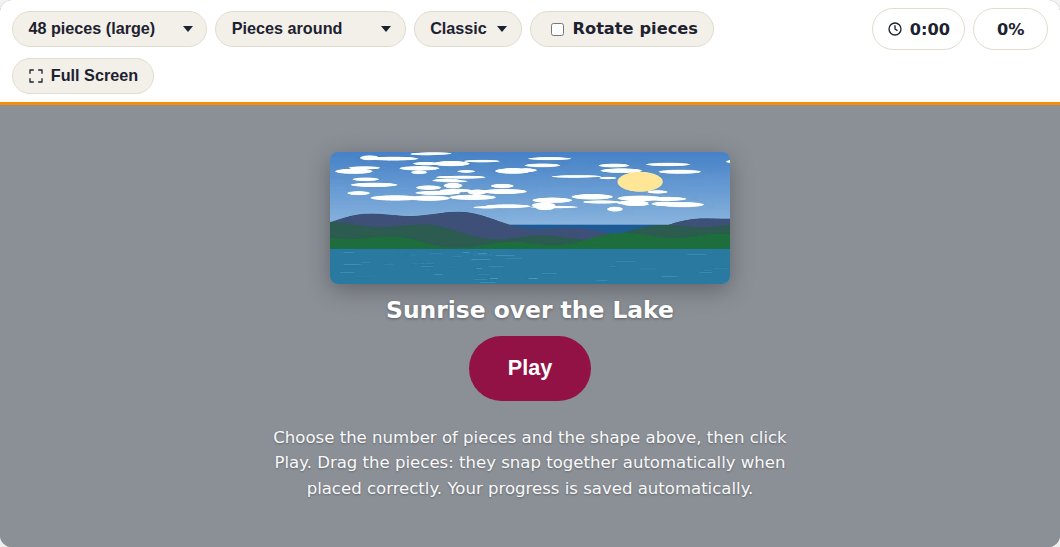
| Piece count | From 24 to 1,000. 24 and 48 are large pieces, 60 is the classic size from the old game, 100, 150, and 200 fit in a coffee break, and from 300 up, it's a project for several evenings. |
|---|---|
| Pieces around / spread out | Around: the picture is built in the middle with loose pieces all around it. Pieces spread out: the pieces are spread across the whole screen, like before. See Play Like Before. |
| Shape | Click the shape button and pick from pictures: Natural (the default, like a real cardboard puzzle), Classic, Round, Bold, Wavy, or Square. Square is the hardest. The pieces have a subtle relief and cast a small shadow when you pick them up. |
| Rotation | On: pieces start rotated and you turn them upright with a double-click, double-tap, or right-click. Roughly twice as difficult. |
| Play | Starts a new puzzle with the pieces shuffled. |
| Resume saved puzzle | Appears if you already started this puzzle at this piece count. You pick up exactly where you left off. |
| Set it up like before | One click gives you 48 pieces spread across the whole screen, like the old game. |
| Show me the buttons | Starts a short tour that explains every button, step by step. The first time you visit, the tour starts on its own; click Skip if you don't need it. |

2. The buttons during play

| Piece count | Can also be changed during play. Your current puzzle is saved and the new size starts (or resumes if you had already begun it). |
|---|---|
| Tidy up O | Lays the loose pieces out neatly again, around the puzzle or spread out. Anything already assembled stays in place. Handy once gaps appear. |
| Timer and percentage | Time only runs while the page is open. Click the time to pause: the pieces are hidden and the clock stops; click again to continue. The percentage shows how many pieces are already assembled. |
| Preview P | Shows the full photo as a transparent overlay over the puzzle. Click again to hide it. |
| Edges E | Temporarily hides all interior pieces, so you can build the edges first. |
| Fit 0 | Adjusts the zoom so every piece is visible again. Handy if you got lost after zooming. |
| Full Screen F | Uses your entire screen. Press Escape or the same button to go back. |
| More | Opens a menu with Layout, Sound, Lock the view, Zoom, Background, Piece shape, New, Shuffle, and the button tour (see below). |
3. Moving and joining pieces
Drag a piece toward a neighboring piece it matches. If it's the right one, it snaps into place (with a small click if sound is on), and from then on the two move together. This lets you build several separate islands and join them later.
Zooming: use the mouse wheel, the + and - keys, or two fingers on a touchscreen. Moving the table: with a mouse, drag an empty area; on a touchscreen, slide two fingers together. One finger only ever moves pieces, so you can't shift the table by accident. Fit brings everything back on screen. Prefer a table that never moves at all? Turn on Lock the view under More.
4. The More menu
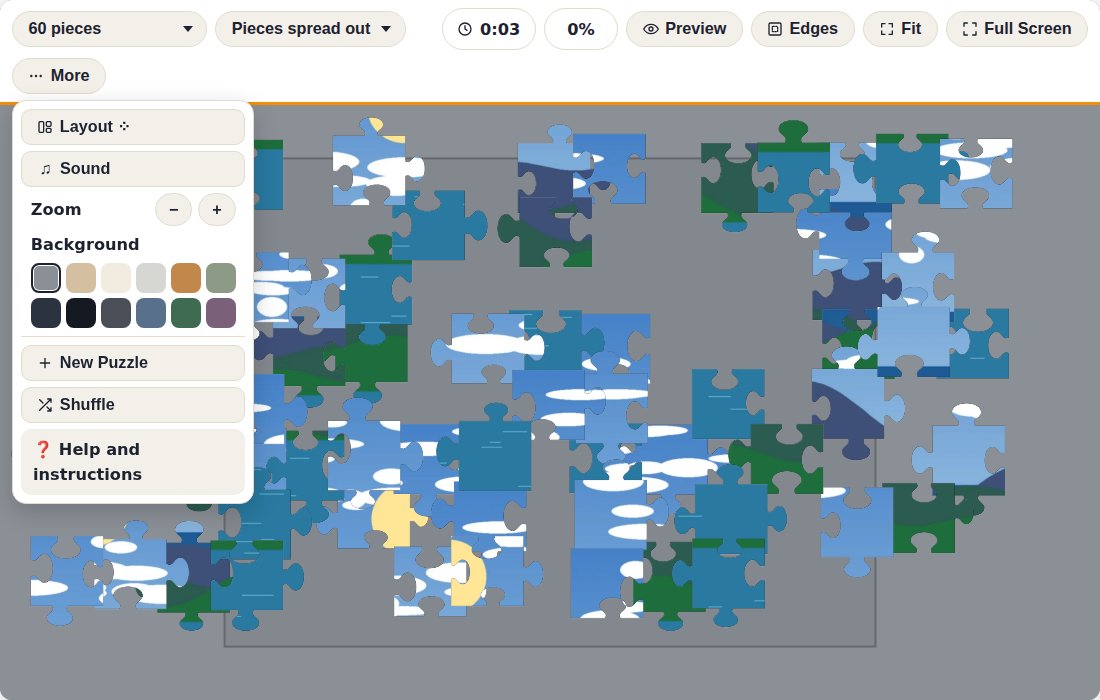
| Piece layout | Around the puzzle or spread across the whole screen. The loose pieces are rearranged right away; your progress is kept. Before play this choice sits in the toolbar next to the piece count. |
|---|---|
| Sound S | Turns the small click on or off when a piece snaps into place. |
| Lock the view | Puts the table back in the starting view and then keeps it there: no zooming or moving, with the mouse, wheel, or fingers. Pieces still move as usual. Handy if the table keeps shifting by accident. Click again to unlock. This choice is remembered. |
| Zoom | Zoom in and out with buttons, for anyone without a scroll wheel. |
| Background | Choose the color of the table. Beige is the default, like the old game; there are also gray, light, and dark colors. |
| Piece shape | The same six shapes as on the start screen, shown as pictures. Choosing a different shape during play restarts the puzzle, so you're asked to confirm first. |
| New | Returns to the start screen to pick a different piece count or shape. Your progress stays saved. |
| Shuffle | Restarts this puzzle from scratch, with every piece detached. Click it twice to confirm. |
| Show me the buttons | Replays the short tour that explains every button. |
5. Puzzle complete
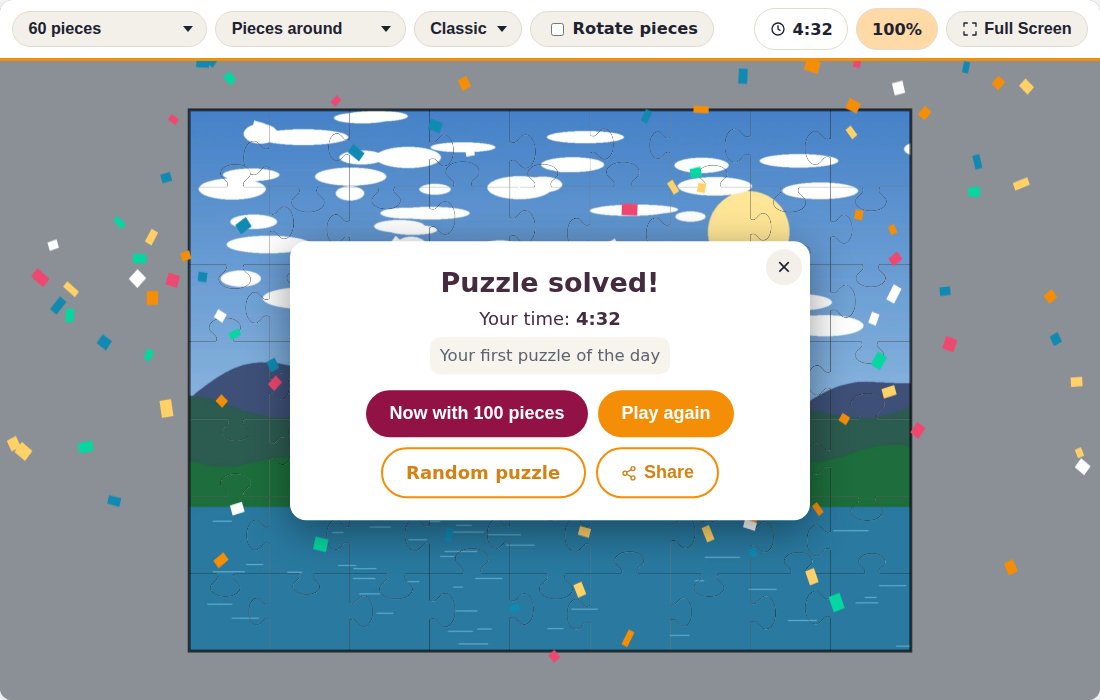
You see your time and, if you beat your previous time at this piece count, "New record!" With Now with 100 pieces, you can replay the same photo right away at the next size up; with Play again, you start over; and under Continue with: you'll find three puzzles from the same theme. With Share, you can send the puzzle along with your time to someone else.
6. Saved progress
Every move is automatically saved in your browser, on the device you're playing on. There is nothing to create and nowhere to sign in. If you close the page, you can continue later with Resume saved puzzle. For every puzzle and every piece count, we also remember your best time. Note: if you clear your browser data (cookies and site data), your progress is lost.
7. On tablet and phone
One finger moves a piece and only a piece: dragging an empty spot with one finger does nothing, so the table never shifts by accident. Two fingers zoom and move the table, and a double-tap rotates a piece (if Rotation is turned on). If you'd rather the table never moved at all, turn on Lock the view under More. On iPad and Android tablets, the game feels great; on a phone, we recommend 24 or 48 pieces and holding the screen sideways. At the bottom of every puzzle page is an Add to Home Screen button: the site then opens like an app, with no address bar and more room for the table.

Keyboard shortcuts
- P Preview
- E Edges
- 0 Fit
- F Full screen
- S Sound
- Space Pause
- + and - Zoom in and out
Frequently asked questions
How do I move around the puzzle table?
With a mouse: drag an empty area of the table, and zoom with the wheel or the + and - keys. On a touchscreen: two fingers move and zoom the table; one finger only ever moves pieces. Use Fit (key 0) to see the whole table again. Want the table to stay completely still? Turn on "Lock the view" under More.
How do I rotate a piece?
Only if you have turned on "Rotation": double-click, double-tap, or right-click the piece.
Can I leave a puzzle unfinished and come back to it later?
Yes. Every move is saved. Reopen the same page later and click "Resume saved puzzle." Each piece count keeps its own progress.
What do the piece shapes mean?
They change the outline of the pieces. Natural (the default) looks like a real cardboard puzzle, Classic and Round have neat knobs, Bold has big knobs and wavy edges, Wavy has no knobs, and Square is the hardest because all the pieces look alike. You pick from pictures, so you can see the difference right away.
Can I pause?
Yes. Click the time in the toolbar (or press the space bar). The pieces are hidden and the clock stops. Click again to continue.
Are there keyboard shortcuts?
F for full screen, P for preview, E for edge pieces, 0 for fit, and S for sound.